

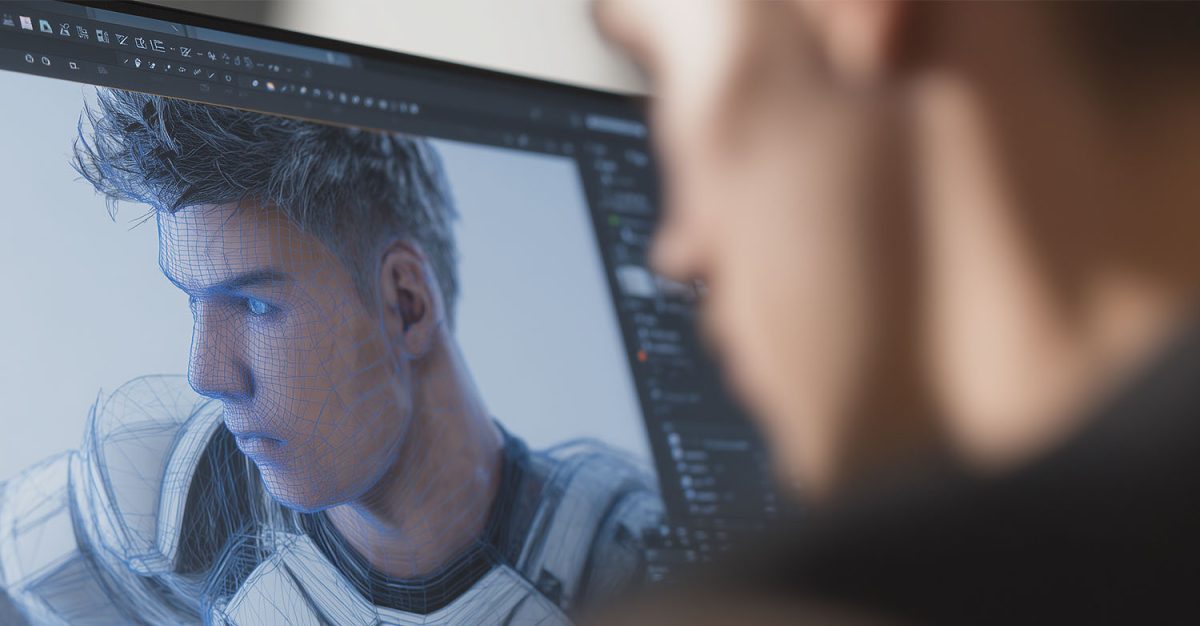
Blender is a powerhouse in the world of digital content creation, offering a robust, open-source suite for 3D modeling, rendering, visual effects, and, notably, animation. Its zero-cost entry point and wide-ranging capabilities make it a go-to tool for indie creators, students, and professionals across the globe. Whether you want to animate a simple bouncing ball or produce an entire animated short, Blender provides the tools to do it. In this beginner-friendly guide, we’ll delve into what makes Blender such a versatile animation platform, and we’ll walk through the essential steps to get started with confidence.
Why Use Blender for Animation?
One of Blender’s most attractive features is that it is completely free and open-source. Unlike other professional animation software that can cost hundreds or thousands of dollars annually, Blender gives you a full toolkit without any licensing fees or limitations. This has democratized access to high-quality animation tools, empowering a global community of creators.
Blender is also an all-in-one solution. Instead of jumping between multiple programs for modeling, texturing, rigging, animating, and rendering, Blender handles it all within a single interface. This streamlines your workflow and reduces technical overhead, allowing you to focus more on the creative process.
Add to this a vibrant and supportive community, an expansive library of plugins, and frequent updates driven by both users and developers, and it’s clear why Blender stands out as an animation powerhouse.
As such, it is why we have developed two Blender courses at Bloop Animation. Blender Object Animation brings you through the step by step process to animate objects, like a SNES controller. While our Blender Animation course brings you through character animation.
What’s Good About Blender for Beginners?
For those just entering the world of animation, Blender provides an excellent balance between functionality and accessibility. While it does have a learning curve, the interface is clean, modern, and fully customizable to suit different workflows. Blender allows you to arrange panels and save workspaces tailored to specific tasks, such as animating or scripting.
One feature that especially benefits beginners is the Grease Pencil tool. It enables traditional 2D animation within a 3D space, offering a unique hybrid workflow not found in most animation tools. This is perfect for artists transitioning from hand-drawn techniques to digital workflows.
Furthermore, features like animation nodes and drivers help automate repetitive actions, allowing you to build complex systems with less manual keyframing. The Rigify add-on simplifies the often daunting task of character rigging, giving you a head start with prebuilt rigs. Overall, Blender supports an exploratory approach to learning, where mistakes become stepping stones.
Getting Started: Blender Basics
- Download & Install
Getting started with Blender is as easy as downloading it from blender.org. It supports all major operating systems and is quick to install. Because it’s open-source, there’s no need to worry about trial limitations or feature restrictions. - Understanding the Interface
The Blender interface might seem overwhelming at first, but each component plays a vital role. The viewport is your window into the 3D world, where you model and animate. The Outliner helps you manage all objects in your scene, while the Timeline and Dope Sheet offer granular control over keyframes. For fine-tuning movement and easing, the Graph Editor is indispensable.
Familiarity with these panels lays the groundwork for efficient animation. Mastering navigation, such as using the middle mouse button to rotate the view or using the number pad to change angles will dramatically speed up your work. - Cloud & Collaborative Workflows
Although Blender operates as a desktop application, there are a number of tools and platforms that make collaboration and online workflows seamless. Blender Cloud, for instance, offers an integrated ecosystem for storing assets, sharing files, and collaborating on projects with teams across the globe.
Third-party tools like Frame.io and SyncSketch allow for real-time feedback and annotation, making them ideal for team reviews. If you prefer managing your own version control, platforms like Git in combination with Dropbox or Google Drive can help you track changes and collaborate efficiently. For those needing extra rendering power, cloud-based solutions like SheepIt Render Farm let you offload resource-intensive rendering tasks to a distributed network.
Blender Animation Workflows
- 2D Animation with Grease Pencil
Blender’s Grease Pencil tool revolutionizes how artists can approach 2D animation. Unlike traditional software that confines you to a flat plane, Grease Pencil lets you draw in three dimensions. This allows for dynamic camera movements and the layering of 2D drawings within 3D space, offering a unique visual style.
Grease Pencil supports multiple layers, onion skinning, and a range of brushes and modifiers. Whether you’re creating storyboard animatics or full scenes, Grease Pencil brings the intuitive appeal of hand-drawn animation into a digital environment. - 3D Animation
A: Rigging Characters: Character rigging is a foundational skill in 3D animation, and Blender offers powerful tools to streamline it. With the Armature Modifier, you can create a skeleton structure that controls your character’s mesh. The Rigify add-on takes this a step further, providing pre-configured rigs for humanoid characters that are both easy to apply and highly customizable.
B: Keyframing & Timeline: Keyframes are the backbone of animation. In Blender, you can insert keyframes for object location, rotation, and scale by pressing I. The Timeline helps you manage these keyframes visually, while the Dope Sheet allows for multi-object coordination. The Graph Editor is where you refine motion curves to achieve smooth, natural transitions.
C: Shape Keys & Drivers: To add realism and expressiveness to characters, Blender allows you to create shape keys which are predefined deformations that can be triggered during animation. Drivers can be set up to automate these shape changes based on other elements in the scene, reducing manual adjustments and increasing efficiency.
D: Non-Linear Animation (NLA): The NLA editor lets you combine and layer multiple animations like clips on a timeline, enabling reusable actions such as walking or blinking. This modular approach to animation is particularly useful for game design and complex character behaviors.